Search the text inside your screenshots on Mac
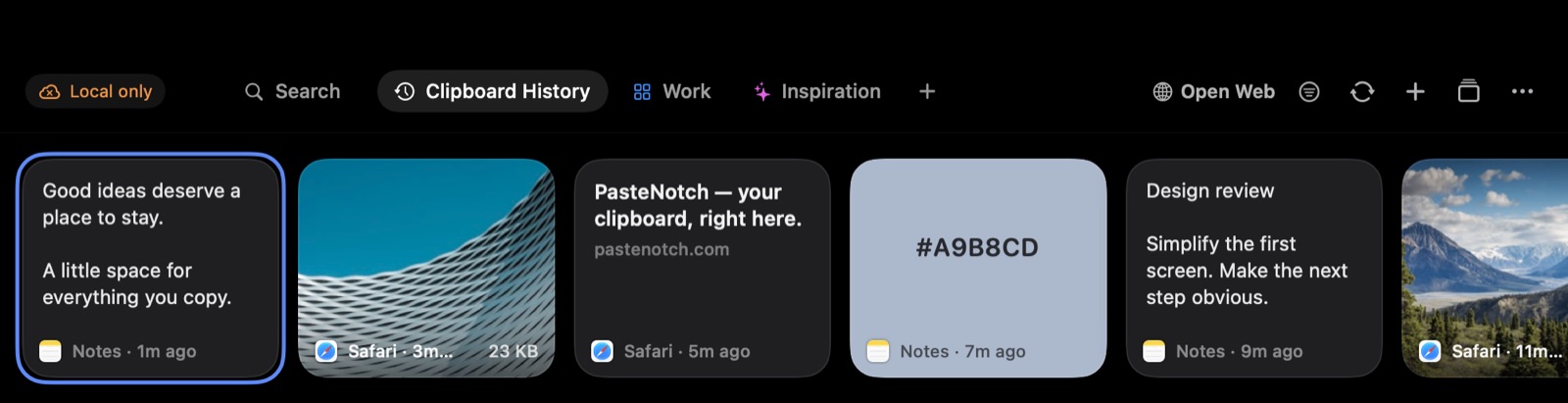
Copy a screenshot or any image, and PasteNotch reads the text in it on your Mac, so you can find it later by typing a word you remember. PasteNotch is a clipboard manager for Mac that opens from the notch, the menu bar or ⇧⌘V.
How does PasteNotch find text in a screenshot?
When an image lands on your clipboard, PasteNotch saves it to your history. Then it reads the text in the image in the background, using Apple's Vision framework on your Mac. No server is involved.
This works for any image you copy: a screenshot you copy with Control-Shift-Command-4, a picture copied from a web page, or a chart copied from a document. It also reads the preview of an image file you copy in Finder.
Very small images, like one cropped line of a menu, are enlarged before reading, so short text still comes through. PasteNotch keeps up to 12,000 characters of text per image.
How do you find an old screenshot by its text?
- Press ⇧⌘V, or click the notch or the menu bar icon.
- Type a word or two you remember from the image, like an error code, a name or an order number.
- Pick the screenshot from the results and press Return to paste it.
What can you search for?
Open PasteNotch from the notch, the menu bar or ⇧⌘V, then type in Search. Search looks at the text of your clips, their titles, link titles, file names, the app they came from and the text read from images.
- Upper and lower case don't matter, and neither do accents.
- Every word you type has to appear in the clip, so invoice march narrows the list fast.
- The search filters menu has OCR Text Only, which shows only clips with recognized text, and Screenshot Inbox, which shows only images. You can also filter by source app and date.
How do you copy text from part of the screen?
Sometimes the text you want is on screen but not copyable, like a video frame, a locked PDF or an error dialog. Press ⇧⌘2 and drag over it. PasteNotch reads the area, puts the text on your clipboard and keeps it in your history as a text clip.
You can change the shortcut in Settings. The first time you use it, macOS asks you to allow Screen & System Audio Recording for PasteNotch.
Copying text from an area is one of the capture tools, which are part of PasteNotch Cloud.
Which plan includes OCR search?
| Feature | PasteNotch, $4.99 once | PasteNotch Cloud, $4.99/month |
|---|---|---|
| Text read from images you copy | Yes | Yes |
| Search and the OCR Text Only filter | Yes | Yes |
| Copy text from an area (⇧⌘2) | No | Yes |
The 14-day free trial includes image text search. PasteNotch Cloud includes the app, so you never pay for both. If the trial ends before you buy, your clips and search keep working, but saving new clips pauses until you do.
Does the text in my screenshots leave my Mac?
No. The text is read on your Mac, and your library stays on your devices and your own iCloud. Signing in does not upload it.
Cloud subscribers can choose to sync eligible clips to PasteNotch Cloud. That is a separate setting, and it is off until you turn it on. Sensitive clips, locked Pages, temporary clips and local file references are never included.
Try PasteNotch free for 14 days
A clipboard manager for Mac that lives in your notch. Sign in, use everything for 14 days, then $4.99 once.